
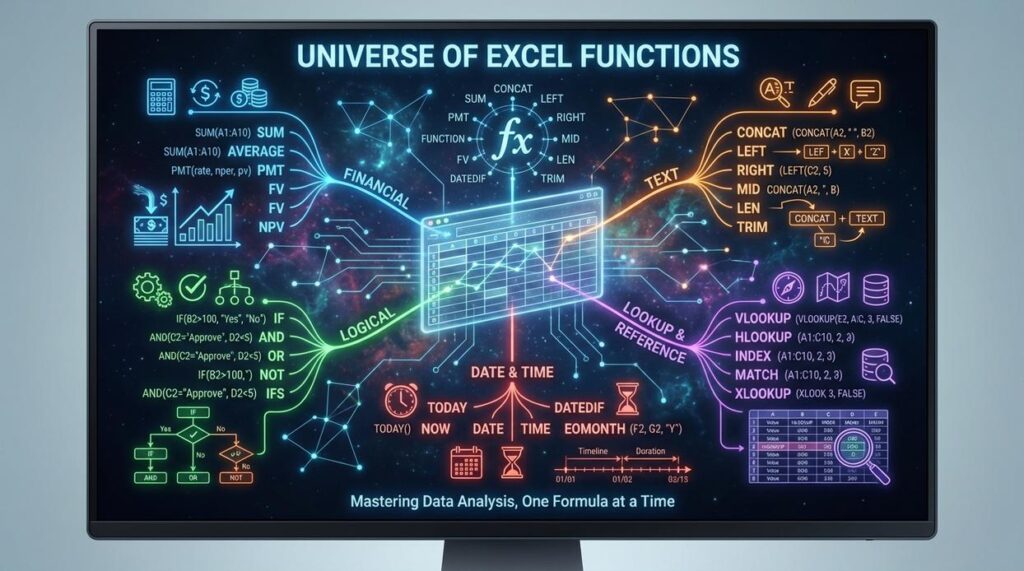
Understanding where the economy is heading isn’t just helpful—it’s essential for making smart financial decisions. If you’re searching for a practical way to project growth, assess risk, or plan capital allocation, this guide will show you exactly how to build and use an economic forecast model in excel to turn raw data into clear, actionable insights.
Many investors and planners struggle with scattered data, unclear assumptions, and models that feel overly complex. This article simplifies the process by breaking down core economic indicators, capital flow dynamics, and structured forecasting techniques into a step-by-step Excel framework you can apply immediately.
Our approach is grounded in proven economic fundamentals, on-chain analytical frameworks, and real-world financial modeling practices used by serious market participants. By the end, you’ll understand how to structure inputs, interpret outputs, and confidently adjust assumptions to reflect changing economic conditions—so your forecasts are not just theoretical, but strategically useful.
Build a Powerful Economic Forecasting Tool with Excel
Economic uncertainty can derail even smart strategies. Without forecasts, planning becomes guesswork. I recommend building your own economic forecast model in excel using data you already track. Start simple, then refine.
Focus on:
- Identifying leading indicators like GDP growth, inflation, and unemployment (Federal Reserve data is a strong starting point).
- Creating scenario tabs for baseline, optimistic, and recession cases.
- Linking assumptions to outputs so revenue, costs, and cash flow update automatically.
Use charts to visualize trends and stress-test assumptions monthly. Consistency beats complexity. Build it once, improve it quarterly, and let data guide decisions.
Step 1: Sourcing and Preparing Your Economic Data
The first time I built an economic forecast model in excel, I made a rookie mistake: I downloaded everything. GDP, CPI, housing starts, oil prices—you name it. My spreadsheet looked impressive (and completely unusable).
So let’s simplify.
Identify and Source the Right Data
Start with core indicators: Gross Domestic Product (GDP) (the total value of goods and services produced), Consumer Price Index (CPI) (a measure of inflation), unemployment rates, and federal interest rates. These variables form the backbone of most macro models because they reflect growth, price stability, labor health, and monetary policy.
Next, pull data from reliable public databases. The Federal Reserve Economic Data (FRED), Bureau of Labor Statistics (BLS), and World Bank provide free, high-quality datasets used by analysts worldwide. Using trusted sources reduces revision errors and improves credibility.
Once downloaded, structure your spreadsheet carefully. Place dates in Column A (properly formatted), then assign one column per variable. Keep intervals consistent—monthly with monthly, quarterly with quarterly.
Finally, clean your data. If values are missing, use linear interpolation (estimating between two known points) or average adjacent periods. Small fixes now prevent major distortions later. Pro tip: always document adjustments in a separate sheet for transparency.
Step 2: Mastering Essential Excel Functions for Analysis

If you want sharper forecasts, start with the essentials. Don’t jump straight into complex dashboards—master the core functions that power them.
Begin with FORECAST.LINEAR. This function predicts a future value based on an existing linear trend. In plain terms, it draws the “best fit” straight line through your historical data and extends it forward. For example, if quarterly revenue has increased steadily, FORECAST.LINEAR estimates the next quarter’s figure using that trajectory. It’s simple—but surprisingly powerful.
Before forecasting anything, though, check relationships with CORREL. Correlation measures how closely two variables move together, ranging from -1 to +1. If consumer spending and GDP show a correlation near +0.8, that’s a strong positive relationship (World Bank data frequently demonstrates this link in growing economies). I recommend always validating correlation first—a forecast built on weak relationships is like building on sand.
For deeper analysis, activate Excel’s free Analysis ToolPak. Use its regression tool to evaluate:
- R-squared (how well your model explains variation)
- Coefficients (how much each variable impacts the outcome)
- P-values (whether results are statistically significant)
If you want true understanding—not just outputs—practice with SLOPE and INTERCEPT. These functions calculate the exact components of a regression line. When you manually reconstruct a trend, you grasp how an economic forecast model in excel actually works (and you’re less likely to trust nonsense results).
Some argue Excel is too basic for serious modeling. That’s overstated. For structured, transparent analysis, it remains one of the most practical tools available (Microsoft, 2023). Start here, refine your inputs, and build upward deliberately.
Step 3: Constructing Your Predictive Financial Model
Define the Core Variables
Every strong forecast starts with clarity. Your dependent variable is the outcome you want to predict—say, quarterly sales. Your independent variable is the driver you believe influences that outcome—like national retail sales or interest rates. Think of it as cause and effect (Batman and the Bat-Signal).
Be precise with your data ranges. Clean inputs mean reliable outputs. Pro tip: align both datasets to the same time frequency—monthly with monthly, quarterly with quarterly—to avoid distorted results.
Running the Regression Analysis in Excel
Using the Data Analysis ToolPak, select Regression. Input your Y-range (dependent variable) and X-range (independent variable). Excel generates a detailed statistical summary on a new sheet—this is the engine behind your economic forecast model in excel.
This output isn’t just numbers; it’s decision-grade intelligence.
Interpreting the Output That Matters
Focus on three metrics:
- R Square: Shows how much of your sales variation is explained by the indicator. Higher means stronger explanatory power.
- Coefficients: These form your predictive formula.
- P-value: Tests statistical significance (typically below 0.05 suggests reliability).
If your P-value is high, critics may argue the relationship is coincidence—not causation. That’s fair. Regression shows correlation, not proof of cause. But when paired with economic logic, it becomes powerful.
Statistical significance protects you from making decisions based on noise.
Building the Forecast Formula
Your formula will look like:
Forecasted Sales = Intercept + (Coefficient × Future Indicator Value)
Plug in projected economic data to estimate future performance. For deeper valuation context, review this beginners tutorial on analyzing stock valuations.
Now your spreadsheet isn’t just tracking history—it’s modeling strategy.
Visualizing data turns forecasts into decisions. Start by combining historical and projected figures in one clean chart; this reveals gaps, inflection points, and model drift (the slow creep away from reality). Critics argue charts can oversimplify complex economies. True—but clarity beats clutter when stakes are high.
- Create the chart: Use a line or scatter plot to compare actuals vs. forecast and evaluate your economic forecast model in excel.
- Add trendlines and confidence bands: Display likely ranges, not just single guesses.
- Run scenarios: Test GDP at 1% versus 3% using data tables.
Pro tip: Document assumptions beside scenario.
Turning Insight into Action
You’ve moved from guesswork to guidance—like swapping a paper map for GPS. Instead of reacting to bumps in the road, you can now see the turns ahead. An economic forecast model in excel becomes your dashboard, helping steer inventory planning, budget allocation, and capital flow decisions with logic rather than instinct.
That said, every model is a simplified blueprint, not the full building. Markets shift. Assumptions age. So, revisit your data and refine indicators regularly.
Start small. Forecast one vital metric. Then, as confidence builds, layer in more variables—much like upgrading from a bicycle to a high-performance engine.
Take Control of Your Financial Outlook Today
You set out to better understand financial trends, capital flows, and the models that drive smarter wealth decisions. Now you have a clearer picture of how economic fundamentals and on-chain data connect — and how structured analysis can turn uncertainty into strategy.
The real challenge isn’t access to information. It’s knowing how to apply it before market shifts impact your portfolio. Ignoring signals, delaying planning, or relying on guesswork can quietly erode long-term wealth.
That’s why using tools like an economic forecast model in excel can be a game-changer. It transforms raw data into actionable projections, helping you anticipate scenarios instead of reacting to them.
If you’re serious about building resilient wealth, now is the time to act. Start implementing structured forecasting, refine your capital allocation strategy, and use proven financial modeling frameworks to guide your next move.
Thousands of forward-thinking investors already rely on data-driven planning to stay ahead. Don’t let uncertainty dictate your future. Take control of your forecasts, strengthen your strategy, and put your financial plan to work today.
 Head of Financial Content & Analytics
Victorian Shawerdawn writes the kind of on-chain economic models content that people actually send to each other. Not because it's flashy or controversial, but because it's the sort of thing where you read it and immediately think of three people who need to see it. Victorian has a talent for identifying the questions that a lot of people have but haven't quite figured out how to articulate yet — and then answering them properly.
They covers a lot of ground: On-Chain Economic Models, Capital Flow Strategies, Financial Trends Tracker, and plenty of adjacent territory that doesn't always get treated with the same seriousness. The consistency across all of it is a certain kind of respect for the reader. Victorian doesn't assume people are stupid, and they doesn't assume they know everything either. They writes for someone who is genuinely trying to figure something out — because that's usually who's actually reading. That assumption shapes everything from how they structures an explanation to how much background they includes before getting to the point.
Beyond the practical stuff, there's something in Victorian's writing that reflects a real investment in the subject — not performed enthusiasm, but the kind of sustained interest that produces insight over time. They has been paying attention to on-chain economic models long enough that they notices things a more casual observer would miss. That depth shows up in the work in ways that are hard to fake.
Head of Financial Content & Analytics
Victorian Shawerdawn writes the kind of on-chain economic models content that people actually send to each other. Not because it's flashy or controversial, but because it's the sort of thing where you read it and immediately think of three people who need to see it. Victorian has a talent for identifying the questions that a lot of people have but haven't quite figured out how to articulate yet — and then answering them properly.
They covers a lot of ground: On-Chain Economic Models, Capital Flow Strategies, Financial Trends Tracker, and plenty of adjacent territory that doesn't always get treated with the same seriousness. The consistency across all of it is a certain kind of respect for the reader. Victorian doesn't assume people are stupid, and they doesn't assume they know everything either. They writes for someone who is genuinely trying to figure something out — because that's usually who's actually reading. That assumption shapes everything from how they structures an explanation to how much background they includes before getting to the point.
Beyond the practical stuff, there's something in Victorian's writing that reflects a real investment in the subject — not performed enthusiasm, but the kind of sustained interest that produces insight over time. They has been paying attention to on-chain economic models long enough that they notices things a more casual observer would miss. That depth shows up in the work in ways that are hard to fake.